Thursday, April 7, 2016

VBoxmanage | import vs clonevm


Why I am writing this?

I have been using VBoxmanage for some time now and only recently ran into a situation that made me realize I didn't do all my homework.
So I wanted to make sure that no one else makes the same mistake I did with managing virtual machines via the command line.

What is Cloning (clonevm)?


    "This command creates a full or linked copy of an existing virtual machine.[1]"

So what does that mean? well, it means it creates a *.vmdk file within the folder for the new virtual machine.

$ vboxmanage clonevm [existing-vm] --register --name [new-vmname]

The above command will create a new vm in the ~/VirtualBox\ VMs/ folder with the *.vmdk file residing within.

What are the advantages to using clonevm:

  • Speed of creation is faster compared to import
  • Fewer options to get yourself tripped up on

Possible disadvantages:

  • There really are fewer options
  • You must already have a base system imported and registered
    • This is just more space being taken up by a machine that may not even be running

What is Importing (import)?

Importing is what needs to be done before you can even clone a system.

    "This command imports a virtual appliance in OVF format by copying the virtual disk images and creating virtual machines in VirtualBox.[1]"

So what does that mean? well, it means that if you simply run the following command:

$ vboxmanage import [filename.ova] --vsys 0 --vmname [new-vmname]

you will get a vm that is based off of the base system found within the *.ova.
But, where is the *.vmdk file located?

~/VirtualBox\ VMs/[filename]/[filename]-disk1_[#].vmdk

When importing an image you can actually import multiple VMs based off one *.ova file, and the disk1_[#] number will just continue to increment.

So, what if you want the *.vmdk file in the same directory that your new VM log file will be?
In order to make that happen you will need to include several other options:

$ vboxmanage import [filename.ova] --vsys 0 --unit 10 --disk VirtualBox\ VMs/[new-vmname]/[new-vmname].vmdk --vmname [new-vmname]

When looking up the '--unit' option, I noticed that some people had 11, but you can get this number at the bottom of the following command:

$ vboxmanage import [filename.ova] -n
...
(change target path with "--vsys 0 --unit 10 --disk path";
...

What are the advantages to using import:

  • You can import the image from anywhere, it does not have to be an installed and registered machine
  • More options so you can setup the machine how you want it and where you want it
  • Other than the *ova file you will not need to have another machine running

Possible disadvantages:

  • If you neglect to include an option, you will not have the environment you were hoping for
  • It does take a little bit longer to import a machine rather than cloning it

I bet you are wondering what it was that I did that caused me to really write this, well, I deleted a folder that contained over 10 VMs because I didn't realize that by importing it would place all of the *.vmdk files into the same folder.
Again, I didn't do all of my homework.

Well, there you have it, clonevm vs import.

----
References:
[1] Chapter 8. VBoxManage; https://www.virtualbox.org/manual/ch08.html

Wednesday, October 8, 2014

Cisco ASA | SSL VPN | Information Disclosure | CVE-2014-3392 | CSCuq29136

Cisco ASA Clientless SSL VPN Information Disclosure and Denial of Service Vulnerability


The following information is in regards to Cisco's ASA SSL VPN Information Disclosure. It will explain, in no great detail, the result of altering the value of a single parameter, and the data returned by the server. (http://tools.cisco.com/security/center/viewAlert.x?alertId=35916)
(http://www.securityfocus.com/bid/70306)
(http://web.nvd.nist.gov/view/vuln/detail?vulnId=CVE-2014-3392)

Please note that no Cisco ASA SSL VPN equipment is owned by the author, therefore, information concerning the vulnerability is limited to an external perspective.

When testing, the first request made on the login page, of the SSL VPN, was a false username/password combination. The result of the request was a url similar to the following:

https://example.com/+CSCOE+/logon.html?a0=88&a1=5468652061757468656E7469636174696F6E20736696365206973206F66666C696E652E&a2=&a3=1

In the response URL it was noted that the parameter a0 was configured to be a means of displaying login error messages:


As a second request, a hyphen was prepended to the value 88 which resulted in the following error:

https://example.com/+CSCOE+/logon.html?a0=-88


Noting that the error had no direct reference to the login form, additional values were tested to confirm that the server was in actuality displaying “random” information.

After submitting various negative values to the server, the following request appeared to disclose the SNMP MIB (1) version used on the server:

https://example.com/+CSCOE+/logon.html?a0=-99999


With confirmation that negative values were some how being interpreted by the server, an automated process was than used to cycle through negative values.

The vast majority of responses contained data that was not directly readable. However, some requests, such as the following, were clearly understood:

https://example.com/+CSCOE+/logon.html?a0=-21494


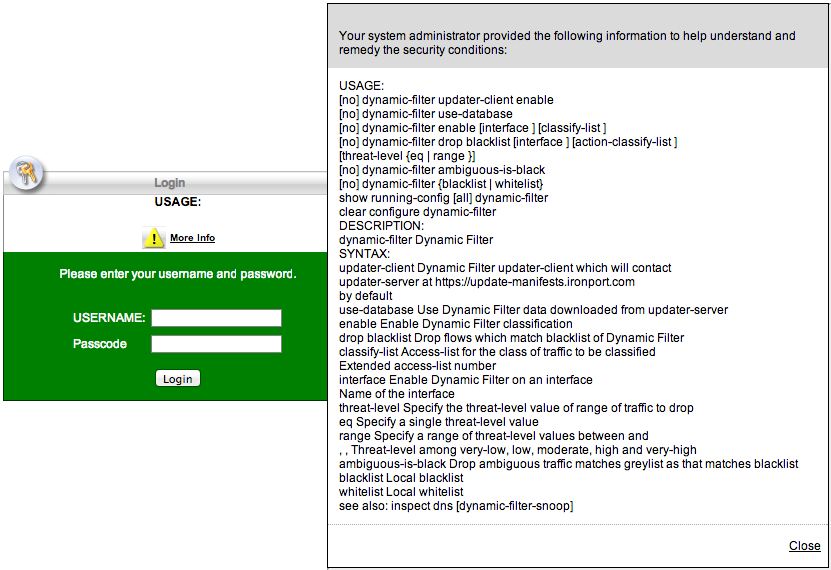
Additional information disclosed by the server contained various listings of endpoint.os.hotfix's as noted in the following screen shot:

https://example.com/+CSCOE+/logon.html?a0=-34894


It should be noted that with the exception of -99999 the same request could seldom be made twice. The random data being returned has been confirmed by Cisco (2) as being “random memory locations”.

Contained in various other requests were what appeared to be, vpn certificates, file content, and additional system command USAGE information.

Although the above information is limited, it hopefully shows the potential this issue has in regards to obtaining information from the vulnerable system(s).

*** UPDATE ***
There is now a shell script to test for this issue:
github.com/monsi/CRAM


References:
1. Appendix C - MIB Support (http://www.cisco.com/c/en/us/td/docs/security/nac/appliance/configuration_guide/48/cam/48cam-book/m_apx_mib.pdf)
2. http://tools.cisco.com/security/center/viewAlert.x?alertId=35917

Wednesday, November 16, 2011

QEMU - VNC - Stupid keyboard issue

So, I ran across an issue that was rather frustrating. Here is the background.

I had installed a plain-vanilla debian machine and then installed libvirt, kvm/qemu and virt-manager (with some other packages but those aren't important).

I had tried to do X11 forwarding on the machine but ran into an issue when trying to use virt-manager to install a guest machine. When ever I would type it would print something other than what I pressed. asdf = abfh.

This wasn't just an issue with X11 forwarding. I also installed tightvncserver and found the same issue. When I would vnc to the Host machine everything would be fine, but when I tried to do an installation through virt-manager I would run into the issue as previously stated.

After looking at everything else I finally took a look at the default keyboard for debian (/etc/default/keyboard) and found that it was "pc105" rather than the plain PC keyboard "pc104" (or pc101).

I know, you are all think "well duh...!" but I didn't know that. After changing the keyboard and rebooting everything started to work fine.

Stupid keyboard layouts.


---UPDATE---
So, I was right but I was wrong. It looks like in Virt-Manager they removed the default keymap for the new guest machines. If you go and delete the current display and add a new one you can uncheck "Keymap [] same as host" and input "en-us". This should fix the issue. (I hope)

Sunday, October 30, 2011

AUTH TLS + FEAT

I ran across a vulnerability a little while ago that was rather interesting. FTP/FTPS has a "FEAT" or Features command that can be passed to the server in order to find out what features are available. But with FTPS this should only work "After" you are authenticated.

Nessus reported the issue but gave the following output for steps to duplicate:
Nessus sent the following two commands in a single packet :

AUTH TLS\r\nFEAT\r\n

And the server sent the following two responses :

234 AUTH command ok. Expecting TLS Negotiation.
211-Extended features supported:
LANG EN*
UTF8
AUTH TLS;TLS-C;SSL;TLS-P;
PBSZ
PROT C;P;
CCC
HOST
SIZE
MDTM
211 END
Now, I may not be the smartest person when it comes to telnet but I am pretty sure you are not able to pass '\r\n' into a telnet session. After making a few attempts my suspicions were confirmed and I was left wondering what it was I needed to do to get the command to execute properly.

I turned to google for help and found a forum that answered my question: control character for 'return'/'enter' = ^J. By using ^J I was able to insert a 'return' but not have the return executed until after I physically hit the return button when I was done with the commands I wanted to execute.

testing:~ hyrum$ telnet www.testsite.com 21
Trying 1.2.3.4...
Connected to www.testsite.com.
Escape character is '^]'.
220 Microsoft FTP Service
AUTH TLS^JFEAT
234 AUTH command ok. Expecting TLS Negotiation.
211-Extended features supported:
 LANG EN*
 UTF8
 AUTH TLS;TLS-C;SSL;TLS-P;
 PBSZ
 PROT C;P;
 CCC
 HOST
 SIZE
 MDTM
211 END
By inserting ^J after the 'AUTH TLS' it was possible to add the FEAT command which according to the rftc (rfc4217) if you pass the FEAT command to the server the server must respond with the available features:

"If a server supports the FEAT command, then it MUST advertise supported AUTH, PBSZ, and PROT commands in the reply, as described in section 3.2 of [RFC-2389]."


It ended up being that simple. Control Characters really do come in handy sometimes. So, the next time you want to pass two commands while in a telnet session don't forget about ^J.

Monday, October 17, 2011

Debian - Openbox Install

This last week I was trying to install openbox on a fresh install of Debian but ran into issues after running
$ apt-get install openbox
Doing a google search gave me several links of people suggesting that I compile openbox from source and that it is the only way to get it installed. After a little more research and help from Mike (thanks mike) I ended up doing the following:
$ apt-get install slim
$ apt-get install openbox menu
Did I really need to do two apt-get's? No, but I wanted to make sure that slim really was installed before moving on.

So, the first apt-get is to install slim which is a "graphical login manager for X11" (aptitude show slim).

The second apt-get is to install openbox itself and menu which is a "Debian menu [that] keeps transparently the menus in the different window-managers in sync with the list of installed programs." (aptitude show menu)

That is all you should have to install. Once you have installed these three items reboot the system and you should be presented with a login window. When you go to log in you will want to click on session and choose openbox, you should only have to do this once.

If you thought this was at all helpful please post a comment and let me know.

Monday, August 29, 2011

Sudo and DNS

So, come to find out sudo can be configured with the following option:

(sudo man page)
fqdn
Set this flag if you want to put fully qualified host names in the sudoers file. ...

Ok, story time...

There I am minding my own business when my buddy comes up to me asking why it is taking so long for him to use sudo. It was taking almost a good 3 minutes to run a single sudo command.

After stupidly restarting the machine and having the issue come back my little brother asks me if the same thing is happening with root (`su -`), no it wasn't. Come to find out CentOS was nice enough to enable the nice little feature that requires DNS to resolve properly in order to run any sudo commands.

In the documentation it gives the following warning:

Beware that turning on fqdn requires sudo to make DNS lookups which may make sudo unusable if DNS stops working (for example if the machine is not plugged into the network).

So remember, if you are going to enable the fqdn option with sudo make sure to always be connected to the network and have your DNS properly resolving otherwise things are going to get messy.

Does anyone else know of any distributions that enable fqdn with sudo?

Tuesday, June 28, 2011

Blue Box - Clarification

I tried to email gadgetsandgizmos but their "contact us" form does not accept html, uri's etc…

"Possible malicious code detected. No HTML, URIs, or anchor tags are allowed in message."

How are we supposed to provide evidence of incorrect information if we can't link them to the correct material?

Anyways, I was interested to see that gadgetsandgizmos had published an image titled "HACK ATTACK: ALL YOU NEED TO KNOW". It was a very interesting title but I was a little worried to see what they were going to say. However, I am going to skip over my opinions and simply correct a piece of information they have placed under Steve Wozniak.

gadgetsandgizmos hackers.jpg

Please, don't get me wrong, I like Steve Wozniak he has done a lot of great stuff but he was not the one that created the blue box as the image says. A matter of fact if you watch the documentary "History of Hacking" Steve actually says that the article from Esquire about the blue box had already come out. It was after the article came out the Steve built his own blue box.

History of Hacking - Youtube

Also, in the document "Steve Wozniak" on page 8 it says the following:

(Steve Wozniak)

"John Draper explained to Wozniak the Blue Box, a device with which one could (mis)use the telephone system by emulating pulses (i.e. phone phreaking). Although Draper instructed Woz not to produce and especially not sell the gadgets on account of the possibility of being discovered, Wo- zniak built and sold Blue Boxes for $150 a piece."

Again, nothing against Steve Wozniak, Steve Wozniak has done a lot for the industry but I just want to make sure that credit for the blue box gets put in the right place.

Additional reading:

Secrets of the Little Blue Box (1971)

Does anyone have any other information that I am missing?
Am I correct in the information I am providing?

John Draper, Steve Wozniak, Steve Jobs ... Any clarification?

Friday, April 22, 2011

Google docs to Excel (somethings wrong here...)

It appears that if you are using Google docs to do excel work you might run into a little trouble with dates (1/1/11) when you move to Microsoft Excel (Mac OS X).

If you create a google spreadsheet and insert the date 3/1/11, save it to your desktop and open it with Microsoft Excel (Mac OS X) everything appears to look fine, but it isn't. If you attempt to copy the date from the original spreadsheet to another spreadsheet the date will change to four years in the future, 1/1/15.

Come to find out, Google has Day 1 listed as 1/1/1900 where Microsoft has it listed as 1/1/1904, a difference of 4 years, hence the leap from 11 to 15.
(special thanks to MichaelRH, http://www.google.com/support/forum/p/Google%20Docs/thread?tid=2d848674b93637f6&hl=en)

However, as pointed out by my brother Mike if you use libre office you get the date you want and none of the funny business. So as Mike so eloquently put it, "libre office ftw".

Thursday, April 7, 2011

Xen: Duplicate MAC addresses/UUID's

I have not quite gotten to the point of using the migrate feature with virt-manager to try and get an image file from one server to another, but rather I have done an scp of the domU image and its config file.

However, if you have done this once already you will run into several problems with having a duplicate MAC address and a duplicate uuid. To solve these two issues you can do the following:

new random MAC address:
import random
mac = [ 0x00, 0x16, 0x3e,
 random.randint(0x00, 0x7f),
 random.randint(0x00, 0xff),
 random.randint(0x00, 0xff) ]
print ':'.join(map(lambda x: "%02x" % x, mac))

new uuid:
in centos you can run 'uuidgen' to get a new uuid.

Take these two pieces of information and edit the domU configuration file. Of course you will also need to make sure that you change the name of the domU as well.

Steps:
scp -p domU.img username(root?)@ip:/location(e.g. /var/lib/xen/images/domU.img)
scp -p domU username(root?)@ip:/location(e.g. /etc/xen/domU)

vim domU[config]
name = "[domU Name]"
uuid = "[new uuid]" (e.g. E793FDB1-7180-4AE8-92EC-742D48335058)
...
vif = "[ mac=[new MAC address],...]" (e.g. 00:16:3e:17:dd:0c)

save and quit, and your new domU should be ready to start.

Wednesday, March 30, 2011

Creating an iso on Mac OS X

I know that a lot of you have done this already, but I always forget the best way to create an iso from a cd on the Mac.

I ran across an entry on a forum (http://forums.macrumors.com/showthread.php?t=220740#6) from tgage who gave the following:

From within Terminal (Applications->Utilities->Terminal)

Mac OS X Tiger (10.4)

You can determine the device that is you CD/DVD drive using the following command:

drutil status

Vendor Product Rev
MATSHITA DVD-R UJ-825 DAM5

Type: CD-ROM Name: /dev/disk1
Cur Write: 16x CD Sessions: 1
Max Write: 16x CD Tracks: 3
Overwritable: 00:00:00 blocks: 0 / 0.00MB / 0.00MiB
Space Free: 00:00:00 blocks: 0 / 0.00MB / 0.00MiB
Space Used: 66:55:27 blocks: 301152 / 616.76MB / 588.19MiB
Writability:


Now you will need to umount the disk with the following command:

diskutil unmountDisk disk1

Now you can write the ISO file with the dd utility:

dd if=/dev/disk1 of=file.iso

When finished you will want to remount the disk:

diskutil mountDisk disk1


Thats it.  Just wait for it to finish creating the iso and you are good to go.

Wednesday, March 23, 2011

Firefox 4 Security Features

http://isc.sans.edu/diary/Firefox+4+Security+Features/10594

On March 22nd 2010 Mozilla released the long awaited firefox 4 browser.  Of the improvements to the browser Mozilla added what is referred to as "XSS and Content Security Policy (CSP)".  This does a rather decent job at preventing certain browser pop-ups/alert boxes.

However, for someone that plays around with XSS and loves alert boxes this was a slight problem.  You won't find CSP in any of the menu options but you will find it in 'about:config'.  If you do a search for CSP you will find the following two entries:

security.csp.debug - false
security.csp.enable - true

If you want to make sure that you can test your alert boxes it is highly recommended that you go and mark 'security.csp.enable' as 'false'.

Tuesday, February 8, 2011

Can't run update-manager even if I am in the sudoers file (Debian)

First I would like to send a major thanks you Mike for finding the answer to my question.

I was trying to run the update-manager but it was not playing nice.  Every time I would launch update-manager it would ask for the "administrator password" which I didn't want to use.  This also prevented me from running other applications as well (anything under the administration section in Debian).

Mike ran across the following article which suggested the following:

run "gksu-properties" and change "authentication mode" to "sudo".

That's all folks, things work just fine now.

http://www.linuxquestions.org/questions/debian-26/changing-graphical-auth-method-su-to-root-gksudo-856640/

Friday, January 28, 2011

Installing flash on CentOS

   Simple solution:

http://www.yqed.com/install-flash-player-10-centos-64-bits/

1. Start by installing those libraries (.i386 and .x86_64):
# yum install curl compat-libstdc++-33 glibc nspluginwrapper
2. Once done with the kitchen work, it is time to install the Flash Player RPM.
# rpm -ivh /tmp/flash-plugin-10.0.12.36-release.i386.rpm
3. Close all Firefox windows and open a new one. In the address bar, type:
about:plugins

 There you go.  Thats it.  Have fun playing kitten cannon.

Starting "Screen Sharing" vnc connection from the command line (Mac OS X)

   Big shout out to Bob237 for the answer to this question.

   I wanted to make it easy to start a vnc session with the new Xen machines I had created.  However, I was having a problem that when I invoked:

open vnc://1.2.3.4:5901 

and entered my password the Screen Sharing window would go white.

   Apparently if you want to start a Screen Sharing session from the command line (Mac OS X) you must first open 'Finder' and browse to /Applications (or /System/Library/CoreServices), right click on Screen Sharing.app and check the box that says "Open in 32-bit mode".

   That's it.  The next time you run the the open vnc command you should have no problems.

Link:
http://discussions.apple.com/thread.jspa?threadID=2414203&tstart=135

Wednesday, January 26, 2011

Xen: Unable to allocate memory

   So it was rather frustrating that after I got all of the domUs created and ready when I rebooted the machine it decided to not start 3 doms.  After talking with a colleague I was directed to the following page:

http://wiki.xensource.com/xenwiki/XenBestPractices

   In the above link it says to modify '/boot/grub/menu.lst' and add the following:

dom0_mem=512M loglvl=all guest_loglvl=all

   then you are to edit '/etc/xen/xend-config.sxp' and modify/add the follwoing:

(dom0-min-mem 512)
(enable-dom0-ballooning no)

   After setting these options you need to restart the machine and all of the domUs (5+) should start without any errors of "allocating memory"

Monday, January 24, 2011

Setting up Debian with VNC

For this example I am using tightvncserver:

1. Install tightvncserver
sudo aptitude install tightvncserver
2. Start a vnc session:
>$ vncserver :1
   b. Try to connect to the server
      i. using screen share type in 10.1.10.10:590?
      ii. Enter your password
3. Stop the server:
   a. >$ vncserver -kill :1
4. Edit the config file in ~/.vnc/xstartup to have it look like the following:
>$ vim ~/.vnc/xstartup

#!/bin/sh

xrdb $HOME/.Xresources
xsetroot -solid grey
x-terminal-emulator -geometry 80x24+10+10 -ls -title "$VNCDESKTOP Desktop" &
#x-window-manager &
gnome-session &
# Fix to make GNOME work
#export XKL_XMODMAP_DISABLE=1
#/etc/X11/Xsession

5. Edit vncserver and make the following change:
>$ sudo vim /etc/alternatives/vncserver

44 #$geometry = "1024x768";
45 $geometry = "1344x840";
46 $depth = 24;
6. Create/Edit the following file:
>$ sudo vim /etc/init.d/vncserver

#! /bin/sh -e
### BEGIN INIT INFO
# Provides:     vncserver
# Required-Start:   $local_fs
# Required-Stop:    
# Should-Start:     vncserver
# Should-Stop:      vncserver
# Default-Start:    2 3 4 5
# Default-Stop:     0 1 6
# Short-Description:    Start vncserver.
### END INIT INFO

# Some things that run always
touch /var/lock/vncserver

# Carry out specific functions when asked to by the system
case "$1" in
start)
echo "Starting script vncserver "
su - test -c "vncserver :1"
;;
stop)
echo "Stopping script vncserver"
su - test -c "vncserver -kill :1"
;;
*)
echo "Usage: /etc/init.d/vncserver {start|stop}"
exit 1
;;
esac

exit 0
   a. Change "test" to your username
7. Change the permissions:
>$ sudo chmod 755 /etc/init.d/vncserver
8. Set the script to start at boot:
>$ sudo update-rc.d vncserver defaults

"Failed to find an unused loop device"

So after spending an entire day trying to install a domU from a bad ISO I finally had one running which I decided to make clones of. After making 7 additional clones I tried to start them all at the same time but received the error of "Failed to find an unused loop device."

After looking around I found the following site:

http://snippets.aktagon.com/snippets/70-Fix-for-Failed-to-find-an-unused-loop-device-when-using-xen

Here it explains that the Xen machine is not setup to handle this many loop devices by default. By default each domU may take at least two loop devices. The solution to the problem was to create the file '/etc/modprobe.d/local-loop' and place the following line in it:

options loop max_loop=64

After creating this file and restarting the machine I am able to create at least 7 domUs and have them running at the same time.

Wednesday, January 5, 2011

sudo and cat

Have you ever wanted to cat something and redirect it to another file but received the error or "Permission denied?" Apparently it is due to the fact that sudo is only applied to the first part of the redirection and not the the file you want to redirect it to.

For example:

$ sudo cat /etc/passwd > /etc/passwd1
-bash: /etc/passwd1: Permission denied

I have found a forum post that gives an explanation and a fix:

http://www.linuxquestions.org/questions/linux-software-2/sudo-and-permission-denied-651619/#post3194983

posts #2 and #3

Monday, December 27, 2010

A Database Error Occured!!

I was asked to look at a site to see if there was any malicious content on the site but found none. However, it was vulnerable to XSS but I was looking for something additional. I decided to input data into the form field a little at a time and finally was able to get the site to "break." By inserting thousands of characters into the form field the application returned "A Database Error Occurred." Contained in the error message was the select statement:

"INSERT INTO `table`(`first_name`, `gender`, `id`, `content`) VALUES('0123456789............X100????', '......', '.....', '.....')

Just goes to show that trying to send a large amount of chars through a form field is a great way to see how things are handled by the application.

Wednesday, December 8, 2010

RE: Stupid iptables

So, something I need to remember about iptables is that you ALWAYS have to ACCEPT traffic on a port BEFORE you do anything with it. Example.
If you want to have vnc port 5902 to be forwarded to a nat'ed machine on port 5901 you will have to do the following:
iptables -A RH-Firewall-1-INPUT -m state --state NEW -m tcp -p tcp --dport 5901 -j ACCEPT
ONLY AFTER you have ACCEPTed the traffic can you then forward the traffic
iptables -t nat -A PREROUTING -i eth0 -p tcp --dport 3389 -j DNAT --to-destination 192.168.122.2:3389
Again, don't forget to ACCEPT traffic before you forward it on.